 Communicado
Editing content
To tailor the content of Communicado for a specific user, you can create categories, subcategories and items. All of them can have a name. For a category, a color can be defined. All its subcategories and items will automatically get the same color. Take the following steps:
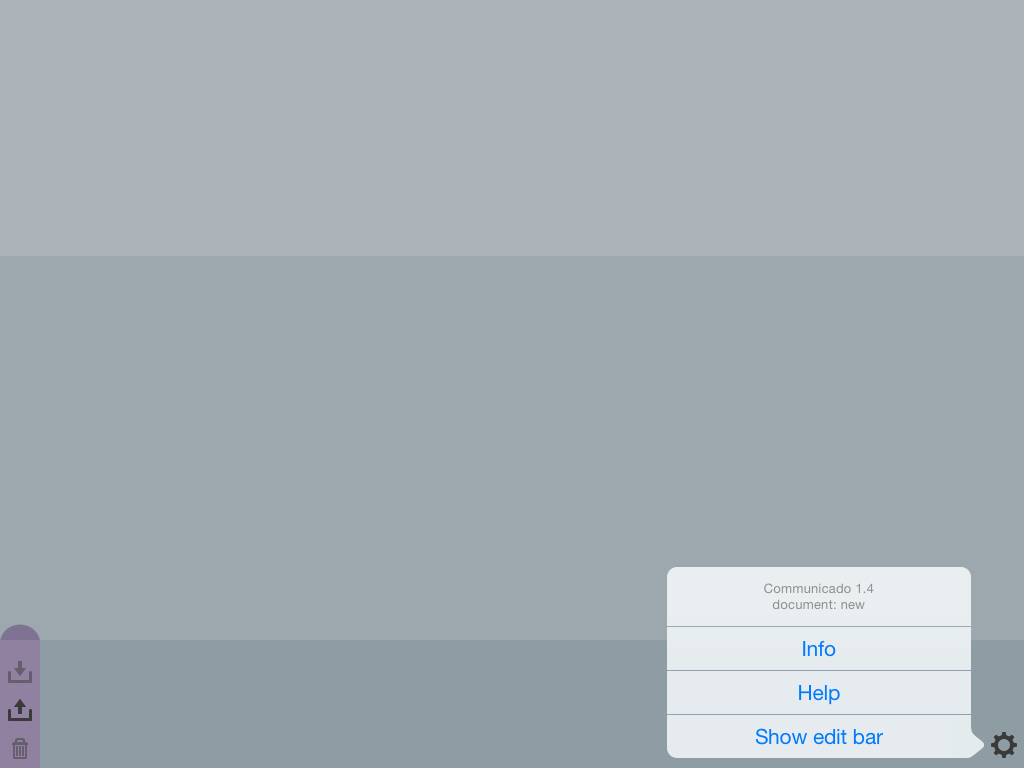
- Tap the Action button (bottom right of the screen). The action menu will appear.
- Select "Show edit bar" from the action menu. The edit bar will appear.
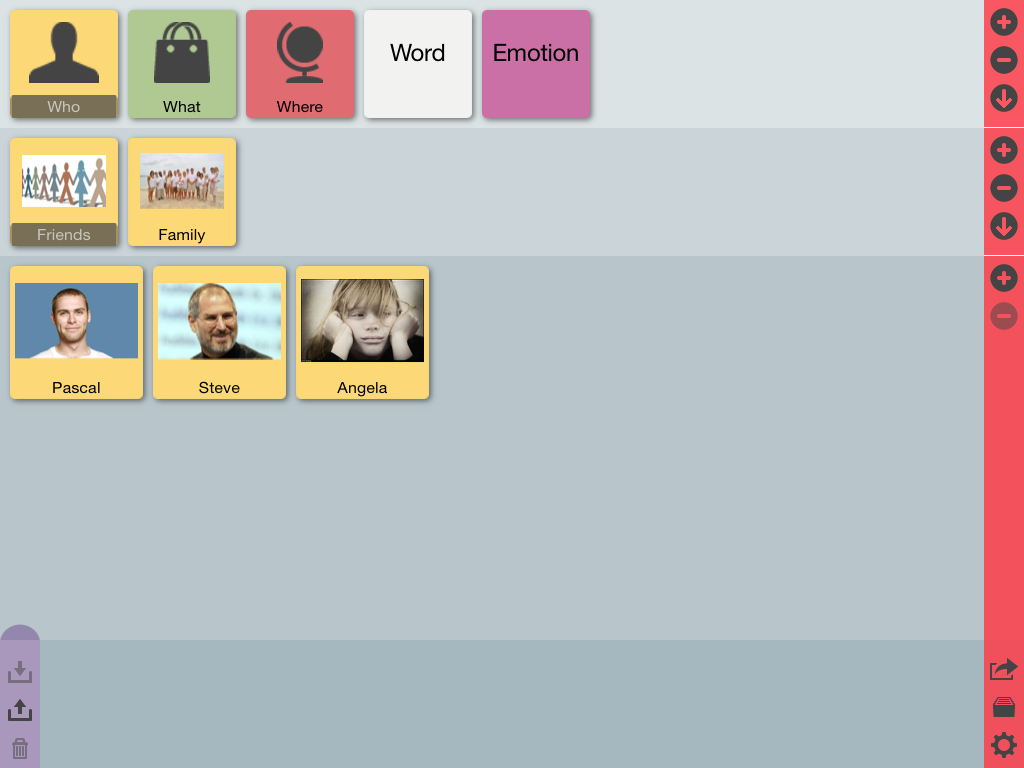
- The edit bar contains 3 areas: one for categories, one for subcategories, and one for items.
- Each area has an Add button, a Delete button and a Download button.
- Tap the appropriate Add button to add a category, subcategory or item.
- Tap the appropriate Delete button to delete the currently selected category, subcategory or item.
- Tap the appropriate Download button to download and add a ready-made category. You can choose from a list of available categories. Please note that not all available categories are suitable for adding as a subcategory.
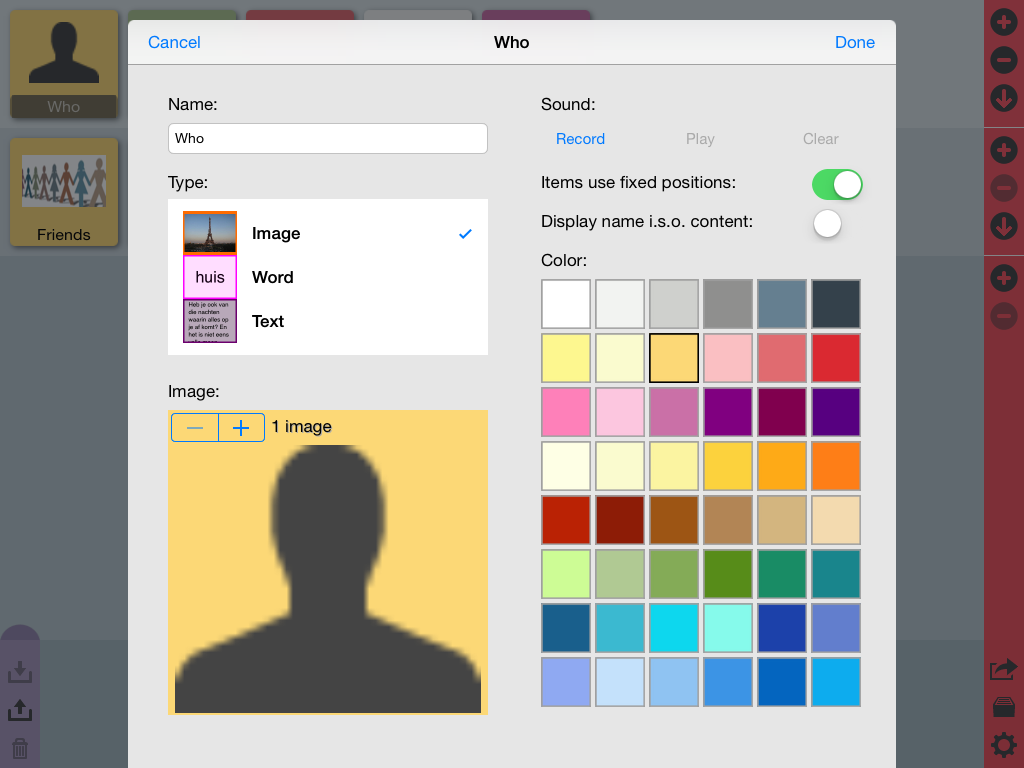
- To edit the content of a category or a subcategory, double-tap it. The category editor screen will appear. Tap the different areas of the screen to change the category's name, color, or image. You can also change the type of the items that will be created for the category, and you can record a sound that will be played when the category is selected. Please note: as long as the edit bar is visible, playing the sound can only be done from this category editor screen.
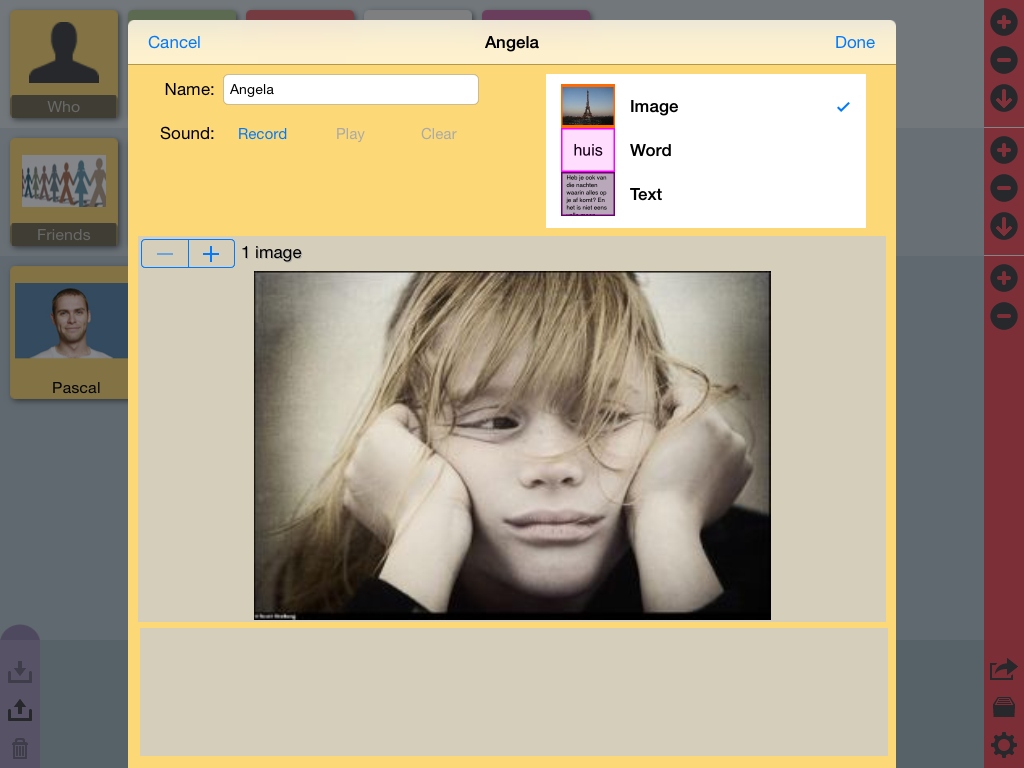
- To edit the content of an item, double-tap it. The item editor screen will appear. Tap the different areas of the screen to change the item's name or image. You can also record a sound that will be played when the item is selected. Please note: as long as the edit bar is visible, playing the sound can only be done from this item editor screen. Finally, you can change the type of the item. By default, the type of the item will be the same as the type of the category it is in. However, you can change the type of individual items in case you want to mix item types within a category.
- To change the order of (sub)categories and items, long-press them and drag them to the desired position.
- The structure of a document can be changed, also by dragging (sub)categories and items. Categories that have no subcategories can be dragged to a different category. By doing so, they themselves become subcategories. Subcategories can always be dragged to a different category. Items can be dragged to a different category, as well as to a different subcategory. The (sub)categories and items you want to move this way can be dragged to the desired (sub)category directly, or alternatively to the area that displays the contents of that (sub)category.
To create new content for another user, without loosing the current content, start working with documents: