 Communicado
Sharing documents
A Communicado document on an iPad can be copied to another iPad. This can be useful for instance if a therapist has multiple documents for multiple clients. By putting a document on the client's iPad the client can use it. Another handy application is starting with a document already produced by somebody else. Once you have the document on your own iPad you can begin editing and extending it.
Method 1: directly from iPad to iPad
This is the easiest way to share a document. This method will only work for documents small enough to be sent by email, and for iPads configured for sending and receiving email.
-
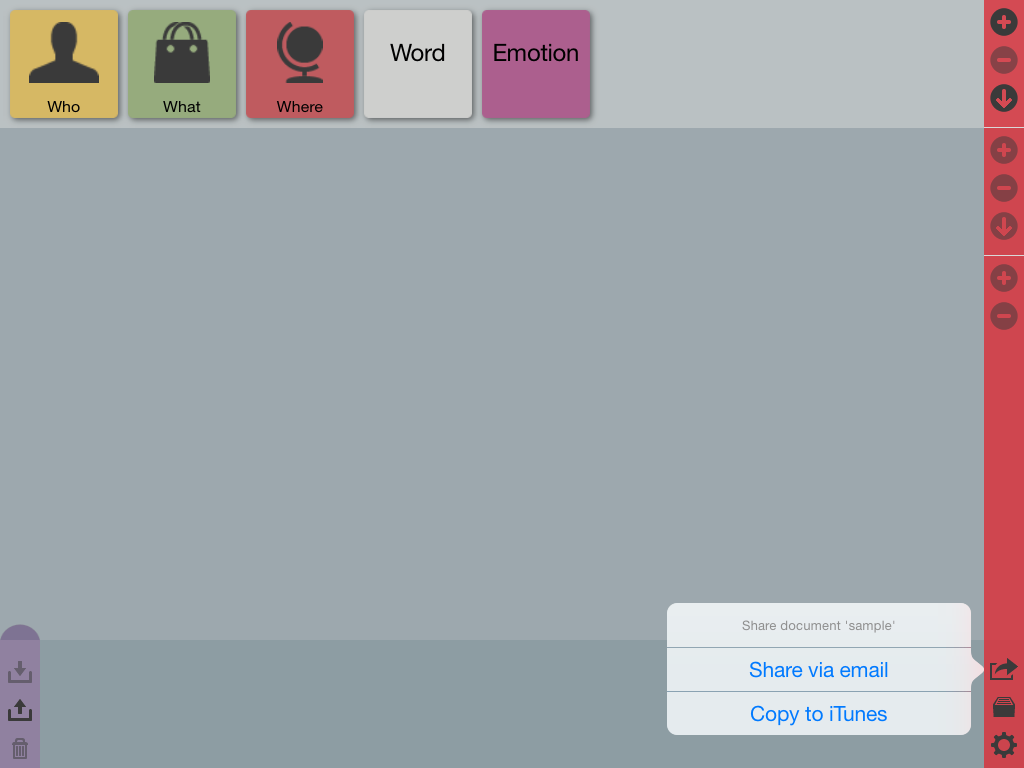
Tap the Share button in the edit bar.
A menu will appear with a choice of export methods. -
Choose "Share via email" to send the document to an email-address of your choice.
The receiver will get the document as an attachment with extension ".cbak". - On the receiver's iPad tap the attachment to automatically open it with Communicado.
Method 2: via a computer with iTunes
Copying a document through iTunes involves 3 steps: exporting from one iPad, transporting to another user, and importing on the second iPad. We'll describe these 3 steps now.
step 1: Exporting
- To share the current document with another user, tap the Share button in the edit bar. A menu will be visible with a choice of export methods.
- "Share via email" will send the document to an email-address of your choice. The receiver will get the document as an attachment with extension ".cbak", and can save it on a Mac or a PC. (This method will only work for documents small enough to be sent by email.)
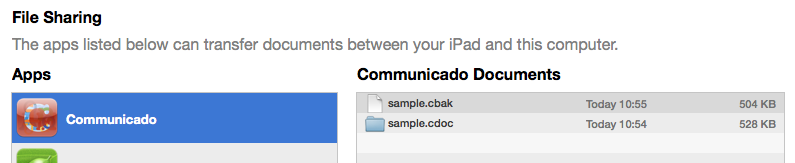
- "Copy to iTunes" will prepare the document for later synchronisation with iTunes. Next, connect the iPad to iTunes on a Mac or a PC. Choose "Communicado" from the "Apps > File Sharing" section of the iPad. The list of "Communicado Documents" will contain a document with extension ".cbak". Drag this document to some place on the computer, for instance the Desktop.
step 2: Transporting
- The ".cbak" document is now available on a Mac or a PC. If that is the computer to be used for connecting and synchronizing the receiving iPad, you're now ready to continue with "Importing".
- Often, the receiving iPad will be at another location, and will be synchronized via another computer. In those cases the ".cbak" document needs to be copied to that other computer. Communicado has no built-in mechanism to do that. You need to use some other transport mechanism. If possible, use a USB stick. Otherwise, consider using Dropbox or a service like YouSendIt.
step 3: Importing
- The receiver needs to add the document to Communicado in iTunes. Connect the receiving iPad with iTunes on the computer that contains the ".cbak" document.
- In iTunes on the computer, choose "Communicado" from the "Apps > File Sharing" section of the iPad. Drag the ".cbak" document from its position on the computer to the list of "Communicado Documents" in iTunes.
- Finally, in Communicado on the receiving iPad, use the Documents dialog screen and tap the "+" button. Select "Create document from iTunes" to add the document. That's it.